
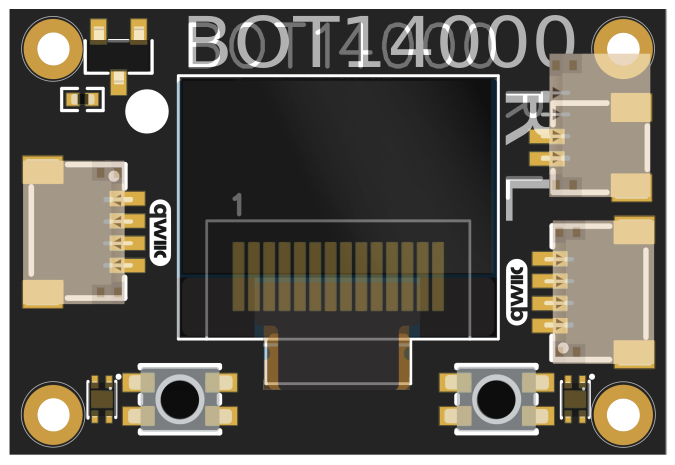
BOT14000 WisBlock Core OLED Quick Start Guide
Prerequisites
Hardware Requirements
- BOT14000 WisBlock Core OLED - The main display module
- WisBlock Base - Power and connectivity platform
- RAK13009 WisBlock QWIIC Module - QWIIC interface adapter
- WisBlock Core - Any compatible core (RAK11310, RAK4631, RAK11200)
- USB Cable - For programming and power
Optional Components
- External magnets - For hall sensor testing (neodymium recommended, ≥35 Gauss)
- Small knife or soldering iron - For JP1 modification (if needed)
QWIIC Compatibility
The BOT14000 uses the QWIIC connector, making it compatible with any development board that supports QWIIC. While this guide focuses on WisBlock integration, the module can be used with Arduino, Raspberry Pi, and other platforms that support I2C via QWIIC connectors. button input might need to be changed depending on situation.
Power Management
The BOT14000 requires proper power rail control for reliable operation:
void setup() {
  // CRITICAL: Enable 3V3_S power rail FIRST
  pinMode(WB_IO2, OUTPUT);
  digitalWrite(WB_IO2, HIGH);
  delay(200); // Allow power stabilization

  // Now safe to initialize I2C and display
  Wire.begin();
  if(!display.begin(SSD1306_SWITCHCAPVCC, 0x3C)) {
    Serial.println("Display init failed!");
  }
}
Critical Power Control
WB_IO2 must be set HIGH before display initialization!
- Control the 3V3_S rail that powers the BOT14000
- Allow 200ms minimum for power stabilization
- Keep WB_IO2 HIGH throughout operation
Hardware Setup
Configuration Option 1: Display Only

Assembly:
- Insert RAK13009 into any WisBlock Base sensor port
- Connect BOT14000 to RAK13009 using QWIIC cable
Configuration Option 2: Display with Inputs

Assembly:
- Follow steps from Option 1
- Connect 2-pin auxiliary connector:
- BTN1/HALL1 → TX Pin (Pin 1)
- BTN2/HALL2 → RX Pin (Pin 0)
Note
The RX and TX pins are used because header J11 on the RAK19007 of this example only has IO1 and IO2 available. you will have a lot more options if you use the larger base board.
Pin Assignment
| Function | BOT14000 Pin | WisBlock Pin | Arduino Pin |
|---|---|---|---|
| Power Control | - | WB_IO2 | WB_IO2 |
| Button/Hall 1 | AUX Pin 1 | TX | PIN_SERIAL1_TX |
| Button/Hall 2 | AUX Pin 2 | RX | PIN_SERIAL1_RX |
Software Setup
I2C Scanner Test
Upload this code to verify the display is detected:
#include <Wire.h>

void setup() {
  // Enable power first
  pinMode(WB_IO2, OUTPUT);
  digitalWrite(WB_IO2, HIGH);
  delay(200);

  Serial.begin(115200);
  Wire.begin();

  Serial.println("I2C Scanner");

  for(byte addr = 1; addr < 127; addr++) {
    Wire.beginTransmission(addr);
    if(Wire.endTransmission() == 0) {
      Serial.print("Device found at 0x");
      Serial.println(addr, HEX);
    }
  }
}

void loop() {}
Expected output: Device found at 0x3C
Examples
Two complete examples are available on GitHub:
Troubleshooting
Display Not Working
- Check power sequence: WB_IO2 must be HIGH before display.begin()
- Verify connections: Ensure QWIIC cable is properly seated
- Run I2C scanner: Should detect device at 0x3C
No Button Response
- Check wiring: TX=Pin 1, RX=Pin 0
- Test with multimeter: Pins should read HIGH normally, LOW when pressed
I2C Issues with Multiple Devices
Consider opening JP1 solder bridge (back of module) if using 3+ I2C devices on the same bus.